
A Practical CMMS Maintenance with Excel: From Intake to KPIs
Maintenance teams don’t need yet another buzzword—they need a clear workflow that captures requests, plans work, controls cost, and proves results. This article walks you through a lean, Excel-based CMMS design that you can deploy today. It follows a simple but robust flow:
Requests → Approval → Work Orders → PM Plans → Parts/Inventory → KPI Dashboard
1) Why this CMMS design works
- Single source of truth: Assets, work orders, PMs, parts, vendors, technicians—each has a clean, validated table.
- Frontline first: A dedicated Requests page makes intake painless and traceable.
- Priority & SLA baked in: P1–P4 priorities and hour-based SLAs drive due dates and overdue flags.
- Measurable outcomes: A small set of KPIs (Open/Overdue WOs, PM compliance, MTTR, parts below ROP) gives leadership what they need without drowning the team in vanity metrics.
- Excel-native: No licenses, fast adoption, easy to customize, and works offline.
2) The data model—what to track and why
2.1 Assets (your registry)
Key fields: Asset ID, Class (e.g., Material Handling), Subclass (Conveyors, Pumps…), Location, Criticality, Warranty, PM next due.
Why it matters: A clean asset list unlocks targeted PMs, risk-based prioritization, and faster troubleshooting.
2.2 Requests (frontline intake)
Key fields: Failure Class/Code, Priority (P1–P4), SLA hours, Approval Status (New/Approved/Rejected), Due By (auto), Overdue Days (auto).
Why it matters: Separating requests from WOs reduces noise and gives planners time to triage.
2.3 Work Orders (WO)
Key fields: Work Type (Breakdown/Preventive/Calibration/Improvement…), Status (New→Completed/Cancelled), Assigned tech, Downtime (h), Labor hours & rate, Parts cost, Total cost (auto), On-Time? (auto).
Why it matters: This is your execution backbone—link to a Request ID when a request becomes a WO.
2.4 PM Plans
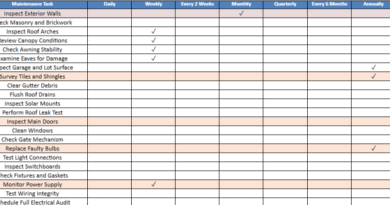
Key fields: Frequency Unit (Days/Weeks/Months/Years), Interval, Last Done, Next Due (auto), Days Remaining (auto).
Why it matters: PM compliance is your best lever to reduce breakdowns without increasing headcount.
2.5 Parts & Inventory
Key fields: On Hand, Reorder Point, Reorder Qty, Unit Cost, Stock Value (auto).
Why it matters: Low stock = longer downtime; excess stock = cash trapped on the shelf. ROP guards both.
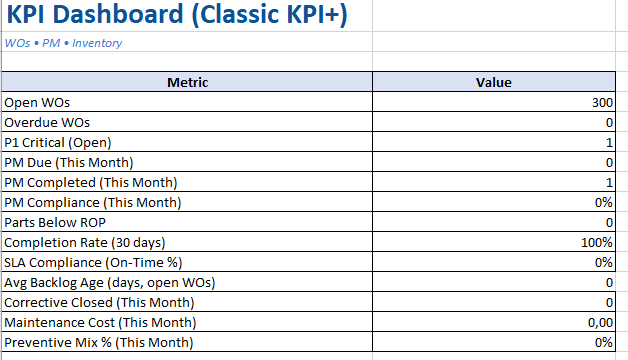
2.6 KPI Dashboard
Focus metrics:
- Open WOs and Overdue WOs (execution health)
- P1 Critical (Open) (risk exposure)
- PM Due vs. PM Completed → PM Compliance (preventive discipline)
- Parts Below ROP (supply risk)
- (Optional) MTTR (mean time to repair), MTBF (mean time between failures) if you log failure dates consistently
3) The operating rhythm (weekly cadence)
- Triage Requests
- Approve or reject. Set Priority and SLA.
- If work is needed, set To WO? = Yes, create a WO, and copy the Request ID into the WO.
- Plan Work Orders
- Assign technician(s), set Planned Start/End and Due Date (align to SLA if needed).
- Prepare parts and permits; add links in the WO “Description/Notes”.
- Execute & Close
- Record Downtime (h), Labor hours, Parts cost.
- Complete Root Cause / Corrective Action / Verification—don’t skip this.
- PM Discipline
- Review Next Due and Days Remaining.
- Hit the PM schedule before it turns overdue.
- KPI Stand-Up (15 minutes)
- Check Open/Overdue, P1 Critical, PM Compliance, Parts Below ROP.
- Agree one or two actions. Keep the loop tight.
4) Setting priorities, SLAs, and statuses that drive behavior
- Priority (P1–P4):
- P1—Critical: Safety risk, production stop, regulatory breach.
- P2—High: Major impact or high probability of escalation.
- P3—Medium: Routine but time-sensitive.
- P4—Low: Minor issues or opportunistic work.
- SLA (hours): Choose targets (e.g., 4/8/24/72/168). In the template, SLA drives Due By automatically on Requests—and Overdue Days once due.
- WO Status flow:
New → Approved → Scheduled → In Progress → Completed(orCancelled)
UseWaiting Partswhen supply blocks execution—this status surfaces in KPI as a constraint to remove.
5) Cost and reliability—what’s “good enough” to start
- Labor cost = Labor hours × Hourly rate (auto).
- Total cost = Labor cost + Parts cost (auto).
- Downtime (h): record only for breakdown WOs; don’t inflate numbers for PMs.
- PM compliance: start by measuring this month. Aim for ≥ 90% on critical assets.
Don’t chase perfect precision on day one. Consistent “good enough” data beats sporadic “perfect” data.
6) How to roll it out in 30–60–90 days
Days 1–30 (Stabilize intake & execution)
- Lock the Requests → WO pathway.
- Train technicians to close WOs with hours and simple root cause.
- Review Open, Overdue, P1 daily; clear the backlog.
Days 31–60 (Preventive & parts)
- Build PM Plans for your top 20% critical assets.
- Define ROP for fast-moving spares; add vendor info.
- Start the weekly KPI stand-up.
Days 61–90 (Improve & automate)
- Tighten SLA targets by priority.
- Add MTTR tracking for top failure modes.
- Consider a simple macro or Power Query to automate Request → WO conversion and monthly KPI exports.
7) Example applications
- Warehouse equipment (forklifts, dock levelers):
P1 for safety or blocked dock; PMs for 500-hour service; parts for tires, forks, seals; vendor response times as an additional KPI. - Process utilities (compressors, HVAC, pumps):
P1 for plant-wide outages; PMs on filters and lubrication; log overheating/vibration failures; track trend of downtime hours. - Packaging line (conveyors, palletizers, PLCs):
Use failure codes Misalignment/Clogging/Sensor Fault; tie PM compliance to startup scrap and rework.
8) Governance and roles
- Requesters (frontline): Submit clear problem statements; choose a reasonable priority.
- Planners/Supervisors: Approve, set SLA, convert to WO, schedule, stage parts.
- Technicians: Execute, log hours/parts/downtime; write short root cause + corrective action.
- Maintenance Manager: Owns KPIs, backlog health, and PM discipline; removes constraints (parts, access, permits).
9) Common pitfalls (and fixes)
- Everything becomes P1: Enforce definitions and require justification.
- WOs never close: Make closing with hours & parts part of the day’s work, not an afterthought.
- PMs always late: Shorten PM scope, increase frequency where appropriate, and schedule during predictable lulls.
- Data drift: Freeze column headers; use the built-in dropdowns and tables to avoid typos.
10) Extending the template
- Mobile intake: Add a simple Microsoft Forms/Google Forms that writes into the Requests sheet.
- Analytics: Use Power BI or Excel PivotCharts for trends (downtime by asset, cost by failure class, aging backlog).
- Compliance: Add calibration logs and certificate links for instruments; audit trails in a “Logs” sheet.
Lean CMMS in Excel: From Intake to Impact
A CMMS doesn’t have to be heavy to be effective. With a disciplined Requests → WO → PM cycle, clear priorities and SLAs, and a small set of meaningful KPIs, you’ll reduce downtime, control cost, and build trust with operations—using tools your team already knows
What it is
A lightweight, Excel-based Computerized Maintenance Management System that covers the full flow:
Requests → Approval → Work Orders → PM Plans → Parts/Inventory → KPI Dashboard.
It’s drop-down driven, works offline, and is easy to customize.
Who it’s for
Maintenance leads, planners, and technicians who need a practical CMMS without complex software—especially in warehouses, utilities, and production lines.
What’s inside (the sheets)
- Start: Home page with navigation links and live KPI tiles.
- Requests: Simple intake form (Priority P1–P4, SLA hours). Auto-calculates Due By and Overdue Days.
- Work Orders: Execution hub with Work Type (Breakdown/Preventive/…),
Status (New→Completed/Cancelled), assignee, Downtime (h), Labor/Parts cost, On-Time? flag. - Assets: Register with Class/Subclass, criticality, warranty, Next PM Due and Days to Due.
- PM Plans: Frequency-based (Days/Weeks/Months/Years) with auto Next Due + Days Remaining.
- Parts & Inventory: Min/Max/On-hand, Reorder Point, vendor, Stock Value (auto) + reorder alerts.
- Vendors & Technicians: Master data feeding dropdowns and cost rates.
- Parameters: All reference lists (priorities, statuses, work types, SLA targets, asset classes) in one place.
Built-in automation & logic
- Auto-IDs: RQ-/WO-/AS-/PM-/PT- prefixes with timestamps.
- SLA → Due date: Requests compute Due By from SLA hours; late items show Overdue Days.
- Costs: Labor Cost = Hours × Rate; Total Cost = Labor + Parts.
- PM math: Next Due from Last Done + Interval; Days Remaining counts down.
- Conditional formatting:
- Priority colors for P1–P4
- Overdue WOs highlighted
- Parts at/below ROP flagged
- KPIs (live): New/Approved requests, Open/Overdue WOs, P1 Open, PM Due vs Completed → Compliance, Parts Below ROP + small overview chart.
How to use (quick workflow)
- Log issues in Requests → set Priority & SLA, pick failure class/code.
- Approve & convert to Work Order (copy the Request ID into WO).
- Plan & execute in Work Orders → assign tech, dates, parts; capture hours, downtime, and root cause.
- Maintain PM Plans for critical assets and keep them compliant.
- Review Start/KPI weekly to chase Overdue/P1 and track PM Compliance.
Customize safely
- Edit drop-downs in Parameters (add your classes, failure codes, SLA targets).
- Add columns to the right of existing tables to avoid breaking formulas.
- Want one-click conversion from Request → WO or a French version? Easy to add.
What’s pre-filled
A few assets, technicians, requests, and WOs are seeded so dropdowns and KPIs work out of the box.
Limitations (by design)
- No macros (keeps it IT-friendly).
- Single-file approach—great for small/medium sites; large multi-site setups may prefer a database later.