How an Excel CAPA Tracker Can Keep Your Corrective and Preventive Actions on Track
No matter the type of organization, be it manufacturing a product, providing a service, or medical care — there will always be issues that occur. Machinery fails, systems slip and mistakes happen that occasionally make it out the door. This is where CAPA (Corrective and Preventive Actions) comes in.
Its simple — rectify the wrong (corrective) and prevent it from happening again (preventive). However, as simple as the idea may be, it is anything but in practice. If there is no method in place to track activities or status, CAPAs will quickly become a long list of “things we know we need to do but we are too busy right now.“ Here is a place where an Excel CAPA tracker comes in very handy.
Why use Excel for CAPA tracking?
Let’s be honest—there are fancy CAPA software solutions out there, but not every team needs (or can afford) them. Excel, when set up properly, is:
Accessible: almost everyone knows how to use it.
Flexible: you can customize it for your processes and terminology.
Visual: with colors, conditional formatting, and charts, you can see the status at a glance.
Instead of getting lost in yet another system, your team works in a familiar tool that already fits your workflow.
What a good CAPA tracker should include
A CAPA tracker in Excel isn’t just a table of tasks—it’s your central hub for monitoring progress and making sure nothing falls through the cracks.
Here are some elements you should consider including:
Unique CAPA ID – Helps avoid confusion when referencing specific actions.
Type – Is it corrective or preventive?
Source – Where did the issue come from? Audit, customer complaint, nonconformity, incident?
Description – A clear, concise summary of the problem or risk.
Root Cause – Ideally linked to a deeper analysis (5 Whys, Fishbone diagram, etc.).
Owner – The person responsible for seeing it through.
Status – Open, In Progress, Implemented, Verified, Closed, Cancelled.
Due Date – When the action should be completed.
Days Remaining – Automatically calculated from today’s date.
Priority – High, medium, low, so you know what to focus on first.
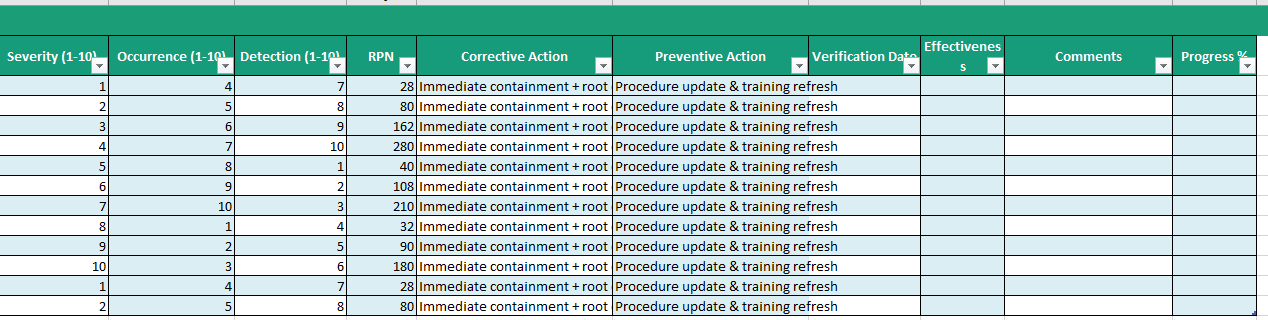
Severity, Occurrence, Detection – If you want to calculate a Risk Priority Number (RPN).
Corrective Action – The fix for the immediate issue.
Preventive Action – The measure to stop it from coming back.
Verification and Effectiveness – Did it actually solve the problem long term?
Comments – Any relevant notes along the way.
Making Excel do the heavy lifting
The beauty of Excel is that you can make it work for you:
Formulas calculate days remaining, overdue flags, and RPN automatically.
Conditional formatting changes cell colors depending on status, priority, or deadlines.
Drop-down menus make data entry consistent.
Progress bars (using data bars) give you a quick visual on how far along each CAPA is.
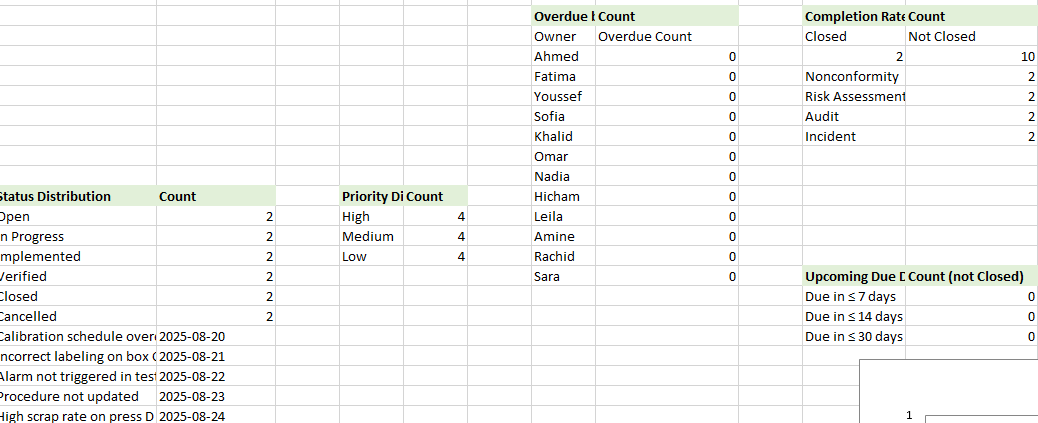
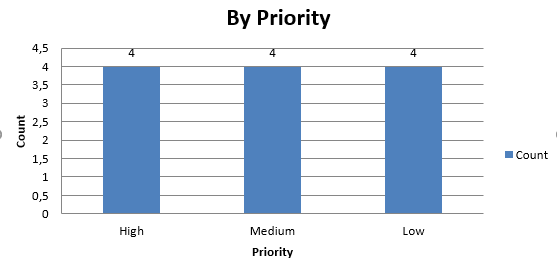
Charts and dashboards turn raw data into something you can review in a team meeting without digging through rows.
For example, if you want a quick snapshot in your next management review, your dashboard could show:
How many CAPAs are open vs closed.
Which owners have the most overdue items.
Breakdown by type (corrective vs preventive).
Trend of CAPAs completed over time.
Why tracking matters more than creating CAPAs
Creating a CAPA is easy—resolving it effectively is the real challenge. Without a tracker, you might have actions sitting untouched for months. Or you might “close” them without ever confirming they worked.
A good tracker doesn’t just record; it drives accountability. Owners can see exactly what’s due, managers can follow up, and the team can celebrate when items move to “Closed” because they’ve actually been verified and proven effective.
CAPA Tracker Excel sheet
A CAPA tracker in Excel is more than just a spreadsheet — it’s a living document that provides you with the additional levels of protection you and your processes, product quality, and reputation need.
When you keep it up to date, use in your regular meetings, bring it into the daily routines of your team — it becomes more than just another file.
Running a comprehensive CAPAs management to drive real change does not demand state-of-the-art software: all it requires is an established system in place plus some fancy Excel tricks (and, of course, a team who sticks to the plan).
1. Overall Structure
The file is built with three main sheets:
CAPA Log – where all corrective and preventive actions are recorded and managed.
Dashboard – a dynamic reporting page with KPIs and charts.
Lists – a hidden helper sheet containing drop-down menu values to keep data consistent.
2. CAPA Log – The Main Tracking Table
This is the working sheet where the team enters, updates, and monitors every CAPA.
Columns
CAPA ID – Unique action number (e.g., CAPA-101).
Type – Corrective or Preventive (drop-down).
Reported Date – When the issue was identified.
Source – Origin of the issue (Audit, Complaint, Incident, Nonconformity, KPI Deviation, Risk Assessment…).
Process/Area – Which process or location is impacted.
Title – Short descriptive name for the action.
Root Cause (5-Why link) – Link or text explaining the root cause analysis.
Owner – Person responsible for completing the action.
Status – Open, In Progress, Implemented, Verified, Closed, Cancelled (drop-down).
Due Date – Planned completion date.
Days Remaining(automatic) – Days left until due date, based on today’s date.
Overdue?(automatic) – Displays “Yes” if the due date has passed.
Download Laboratory Balance Calibration Verification Log Automated in Excel ⬇️ 1. Introduction In laboratories where precision weighing is critical—whether in
In any manufacturing environment, machines must operate successfully, with reduced downtime, consistent output, and almost perfect quality. That is where