Mastering Daily Cash Flow in Excel: Why Every Business Needs a Smart Cashier Balance Sheet
There’s a moment at the end of every business day when the doors close, the last customer walks out, and the dust settles on the hustle of the past few hours. That’s when the real work begins—reconciling your cash register.
Whether you’re running a café, managing a retail shop, or overseeing a small chain of stores, knowing exactly where your money went—and where it came from—isn’t just smart. It’s essential.
And while there are plenty of flashy accounting tools out there, many seasoned business owners will tell you: a well-crafted Excel template can still be your best friend. Especially when it comes to creating a Cashier Balance Sheet that not only tracks transactions but helps you understand your cash position in real time.
Why Cash Flow Reconciliation Matters (More Than You Think)
Let’s be honest. Reconciling daily transactions isn’t the most glamorous part of running a business. But cash flow issues are one of the top reasons small businesses struggle. Not because they aren’t profitable, but because they lose track of liquidity.
You can have healthy sales and still find yourself in a bind if you don’t know:
How much actual cash entered your drawer
What was paid via card or online
What was spent on small daily expenses
And whether your manual cash count matches your expected total
That’s where a cashier balance sheet comes in.
A Practical Tool That Works: The Cashier Balance Sheet Template
So, what exactly is this template?
Think of it as a daily financial checkpoint—a place where you or your staff can record every transaction category, from the opening cash float to card sales, to minor cash payouts, all the way to your closing balance.
But here’s the key: a good balance sheet doesn’t just log data. It works with you.
In the automated template we’ve created, each line is laid out in a way that mirrors the natural flow of a business day:
Opening Cash
Cash Inflows (broken down into cash sales, card sales, online payments, and other income)
Cash Outflows (like vendor payments, petty cash, or staff meals)
Closing Balance Calculation
Manual Cash Count
Cash Difference
Each of these steps is designed to not only help you record but also automatically calculate totals, spot discrepancies, and give you clarity at a glance.
Behind the Numbers: The Power of Formulas
One of the beautiful things about Excel is that once you set it up right, it thinks for you.
For instance:
Your total income isn’t something you need to sum manually—it’s calculated for you the moment your inputs are in.
Your cash difference? Instantly shown the moment you enter your manual cash count.
Want to see how today compares to yesterday? Add a tab, copy the sheet, and compare across time.
It’s not rocket science, and it doesn’t need to be. But it is smart design.
Designed with the Human in Mind
Now, let’s talk about something most templates get wrong: they’re too technical, too cluttered, or too dull to use every day.
We intentionally built this one with color-coded rows, alternating line fills, and clean headers, so it’s easy on the eyes and intuitive to navigate.
Total rows are highlighted in soft blues or grays
Sections are separated visually
Important cells like the “cash difference” are set to stand out
Why? Because if your sheet is hard to use, it won’t get used. And tools only help if they’re actually adopted.
How This Fits into the Bigger Picture
You might be wondering, “Isn’t this just a short-term tool?” Not really.
This balance sheet is your entry point to better financial habits. When used daily, it becomes a habit—one that connects you directly to your numbers.
It also builds a paper (or digital) trail for:
Accountability among staff (who handled the register)
Tracking seasonal fluctuations
Preparing for audits or financial reviews
And perhaps most importantly—it builds your intuition.
Once you use this for a few weeks, you’ll start spotting trends. You’ll catch days where something feels off. Maybe sales were great, but the card machine lagged. Or you’ll notice the petty cash is running low more often than it should.
These patterns aren’t just data. They’re stories. Stories that help you run your business smarter.
Real Stories from the Field
Ask any retail manager who’s had to manually count a drawer at 11 PM after a 14-hour day. They’ll tell you—the best tools are the ones that don’t require you to think too much when you’re exhausted.
One small bakery owner shared this: “We used to just jot things down on paper. But when one of our staff miscounted two days in a row, it threw off our ordering. We switched to the Excel balance sheet, and not only did it prevent further mistakes—it actually helped our staff feel more confident managing the register.”
That’s the magic of structure: it doesn’t limit you, it frees you.
The Daily Cash Flow Summary: Another Layer of Insight
In tandem with the cashier balance sheet, we’ve created another model: the Daily Cash Flow Summary.
This one zooms out a bit. It focuses less on transaction type, and more on overall business health for the day. You get:
Opening balance
All inflows and outflows
Net change in position
It’s great for owners and managers who want a pulse check, without going line by line through each receipt. It complements the detailed sheet and brings together the bigger picture.
Getting Started: A Few Tips from Experience
If you’re thinking of implementing a daily cashier balance system, here are a few field-tested tips:
Train your team—don’t assume they know Excel. Even simple guidance can go a long way.
Customize it to your flow. Rename rows, add categories, remove ones you don’t use.
Print a version for backup. Sometimes having a hard copy with signatures can help for audits or accountability.
Set a daily rhythm. Do reconciliation at the same time every day—just like brushing your teeth. Make it routine.
Excel Sheet: Daily Cashier Balance Sheet – Detailed Version
This Excel sheet is a smart, automated daily tracking tool designed to help businesses manage and reconcile cash inflows and outflows with precision and ease. It includes thoughtfully structured rows, auto-calculations, and visual cues to help both staff and managers quickly assess the financial snapshot of each day.
🧾 Structure & Sections
1. Title Row
Cell A1:B1 Merged and centered, this row displays the title: “Daily Cashier Balance Sheet – Detailed”
Font: Bold, white
Fill color: Deep blue (hex #1F4E78)
Alignment: Centered
2. Table Headers
Row 2 contains the headers:
Column A: Category
Column B: Amount
Style: Bold, white text on a steel blue background (#2F5597)
3. Main Table Body (Rows 3–17)
These rows break the cashier’s activity into logical financial events.
Row
Category
Formula/Logic
3
Opening Cash
Entered manually
4
Cash Sales – Products
Entered manually
5
Cash Sales – Services
Entered manually
6
Card Sales – Credit
Entered manually
7
Card Sales – Debit
Entered manually
8
Online Payments
Entered manually
9
Other Income
Entered manually
10
Subtotal Income
=SUM(B4:B8) → calculates all income streams except Opening Cash
11
Petty Cash Withdrawals
Entered manually
12
Vendor Payments
Entered manually
13
Miscellaneous Expenses
Entered manually
14
Subtotal Expenses
=SUM(B11:B13)
15
Closing Cash (Auto)
=B10-B14 → Net income minus expenses
16
Cash Count (Manual)
Physically counted cash at end of day
17
Cash Difference (Auto)
=B15-B16 → Reconciles expected vs actual cash in hand
Formatting & Visual Enhancements
Alternating row colors:
Light blue (#E8F1FA) for even rows
White for odd rows
Bold categories:
Especially for subtotal or important calculation rows
Currency formatting:
Column B (Amount) uses US dollar formatting ("$"#,##0.00)
Formulas are embedded but hidden under clean inputs, meaning users just enter values—Excel handles the math.
Functionality Highlights
Fully automated subtotals and calculations for income, expenses, closing cash, and discrepancies
Designed for daily use with minimal input but high visibility
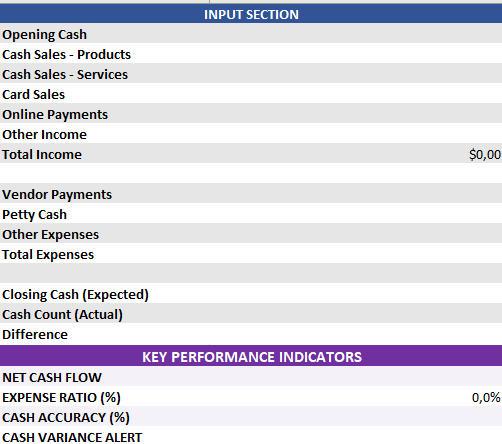
This Excel file, titled “Cashier Real Calculator with KPIs”, is a fully automated daily reconciliation tool designed to help cashiers and managers track cash movements, calculate key performance indicators, and identify discrepancies instantly. It’s built with simplicity, logic, and usability in mind
Structure Overview
The sheet is organized into three main sections:
1. Input Section
Rows 2–7 are dedicated to daily financial input fields. These cells are where the user enters actual amounts for each category.
Row
Label
Description
2
Opening Cash
Cash in drawer at start of day
3
Cash Sales – Products
Cash collected from product sales
4
Cash Sales – Services
Cash from services rendered
5
Card Sales
Total card transaction value
6
Online Payments
Revenue from online channels (e.g., PayPal)
7
Other Income
Miscellaneous income
2. Automated Calculations
Rows 8–17 are automatically calculated or provide reconciliation inputs:
Row
Label
Formula/Function
8
Total Income
=SUM(B3:B7)
10
Vendor Payments
Manual input
11
Petty Cash
Manual input
12
Other Expenses
Manual input
13
Total Expenses
=SUM(B11:B13)
15
Closing Cash (Expected)
=B8-B13
16
Cash Count (Actual)
Manual entry of counted cash
17
Difference
=B15-B16
Alternating row colors (light gray and white) enhance visual clarity.
3. Key Performance Indicators (KPIs)
Rows 19–23 provide automated, strategic financial insights based on the daily entries.
Optimizing Preventive Maintenance aims to enhance equipment dependability, diminish upkeep expenses, and maximize equipment lifespan. Below are the key steps
Download Machine Utilization Tracker (Excel)- Performance Measurement Formula ⬇️ In production environments, success isn’t just about how much gets done—it’s
Download Daily Preventive Maintenance Inspection Checklist in Excel ⬇️ Preventive maintenance is a vital function in any equipment-reliant industry, from